
Manual and advanced install options

Most people only ever click Install. The Advanced / Manual section at the bottom of the library is for the few cases where the automatic install isn't the right fit. These options don't install anything themselves – they save files for you to import. The "?" next to each option explains it inside the installer.
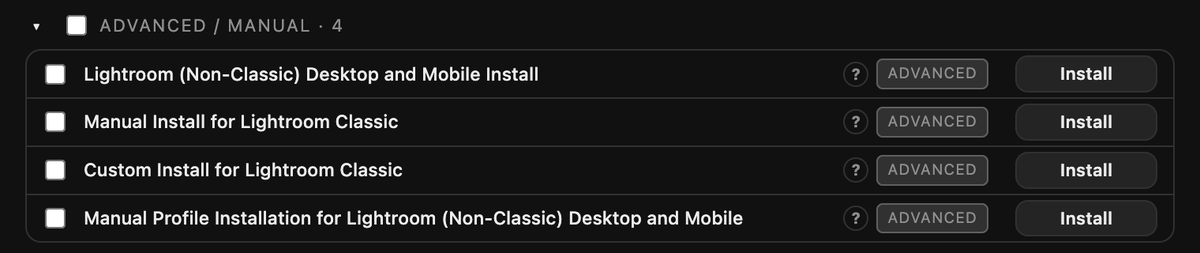
Lightroom (Non-Classic) Desktop and Mobile InstallFor Lightroom (Non-Classic) Desktop and Lightroom Mobile. Saves a .zip with a mobile-ready version of every preset pack on your account. Import it in Lightroom (Non-Classic) Desktop with File ▸ Import Profiles & Presets; Mobile receives the presets through Creative Cloud sync. Camera profiles and brushes are not included because Lightroom (Non-Classic) cannot use them. Full steps: How to Install to Adobe Lightroom (Non-Classic) Desktop and Mobile. Manual Install for Lightroom ClassicSaves an import .zip of your packs for Lightroom Classic. Use it only if the normal Install did not make your presets appear and the steps in Presets are not appearing in Lightroom didn't help. Import it in Lightroom Classic with File ▸ Import Develop Profiles and Presets. Custom Install for Lightroom ClassicFor Lightroom Classic users who keep "Store presets with this catalog" turned on (Preferences ▸ Presets ▸ Location). Lightroom then reads presets from the catalog's own "Lightroom Settings" folder instead of the usual place. This option asks you for that folder and installs your packs straight into it. If you don't use that preference, you don't need this option. Manual Profile Installation for Lightroom (Non-Classic) Desktop and MobileSaves the DVLOP profile .zip files for Lightroom (Non-Classic). Import them the same way as the presets above. LUT packs: the Manual buttonLUTLAB packs also have a Manual button on their row. It saves the .cube files as a .zip for editors the installer does not install into. See Installing LUTLAB packs. |