
Installing LUTLAB packs

A LUTLAB pack is a video look sold as a single LUT. When you install it, the DVLOP Installer builds one extra LUT for every log format your cameras record, with the look already applied – you drop one file onto your log footage and get the finished look.
HOW TO INSTALL
|
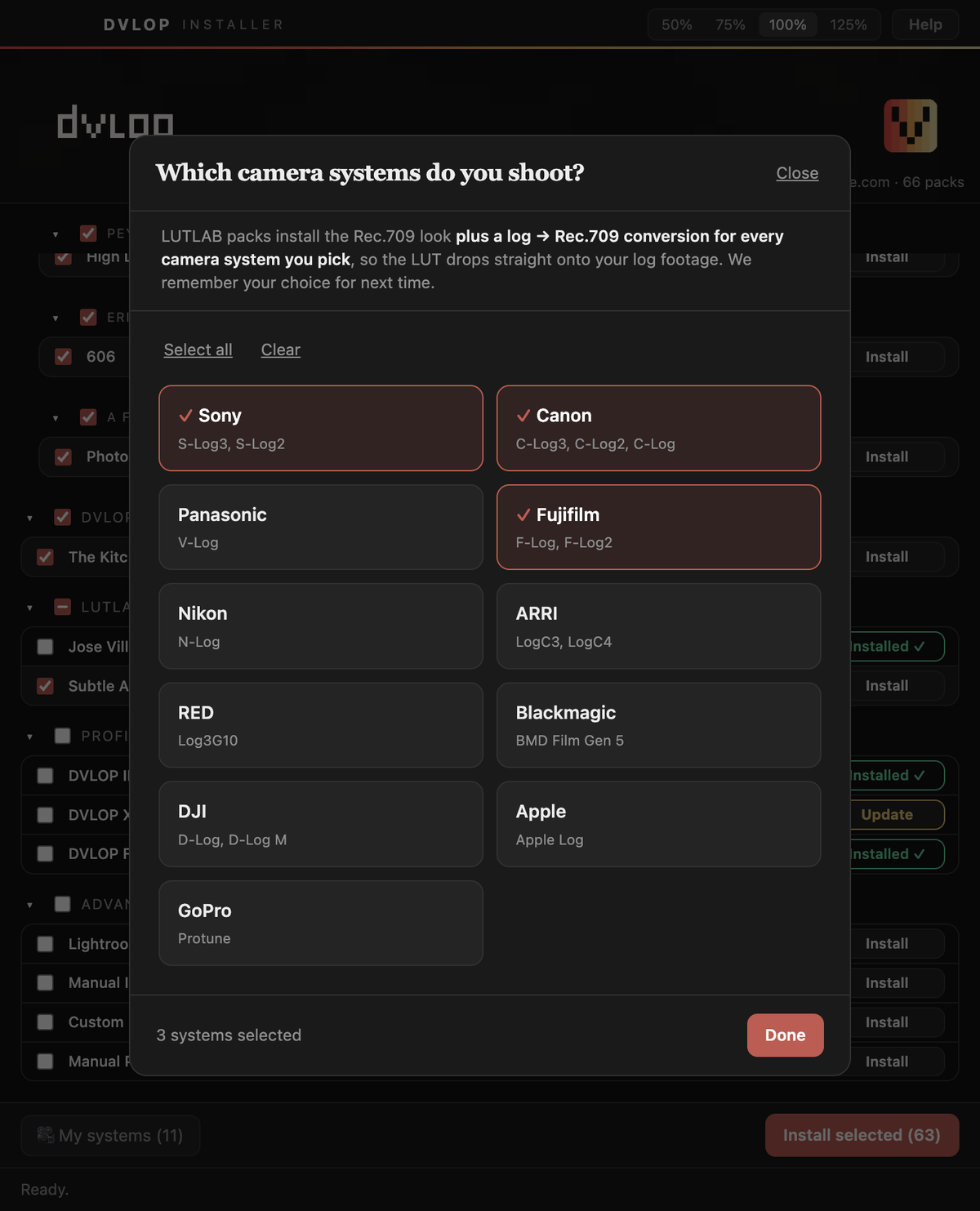
• STEP 1 – Open the DVLOP Installer and sign in. Find the pack in the LUTLAB section and click Install. • STEP 2 – The installer asks "Which camera systems do you shoot?" Tick the systems you use (Sony, Canon, Panasonic, Fujifilm, Nikon, ARRI, RED, Blackmagic, DJI, Apple, GoPro) and click Done. Ticking a system builds all of its log formats.
• STEP 3 – Wait until the row reads Installed ✓. Leave the window open until then. • STEP 4 – Restart your video editor. In DaVinci Resolve you can also right-click in the LUT browser and refresh the list. The camera question appears every time you install a LUTLAB pack, pre-filled with your last choice, so you can change cameras later by simply clicking Install again. You can also change them any time with the My systems button at the bottom left. |
WHICH VIDEO APPS ARE SUPPORTED
|
The LUTs are installed into every one of these that is on your computer:
You will find a folder named after the pack (for example "Jose Villa - Studio") in each editor's LUT list, with the plain look plus one file per format, such as "Studio - Color - S-Log3 to Rec709.cube". The row says "Not installed". None of the supported editors was found on this computer, so there was nowhere to put the LUTs. Click the pack's Manual button instead: after the camera question it asks where to save a .zip of the .cube files, which you can import into any editor (CapCut, Filmora, Vegas, a custom LUT folder, and so on). Once you install a supported editor, Install works normally. Other LUT packs. Older LUT packs in the LUTLAB section (such as Subtle Art of the Sauce) install exactly as the creator packaged them, with no camera question. |