
How to update Presets for Adobe

DVLOP provides updates for packs. These may be universal or specific to one pack or preset. You do not need to download a new installer to get them – the DVLOP Installer checks for updates every time you open it.
HOW TO UPDATE
|
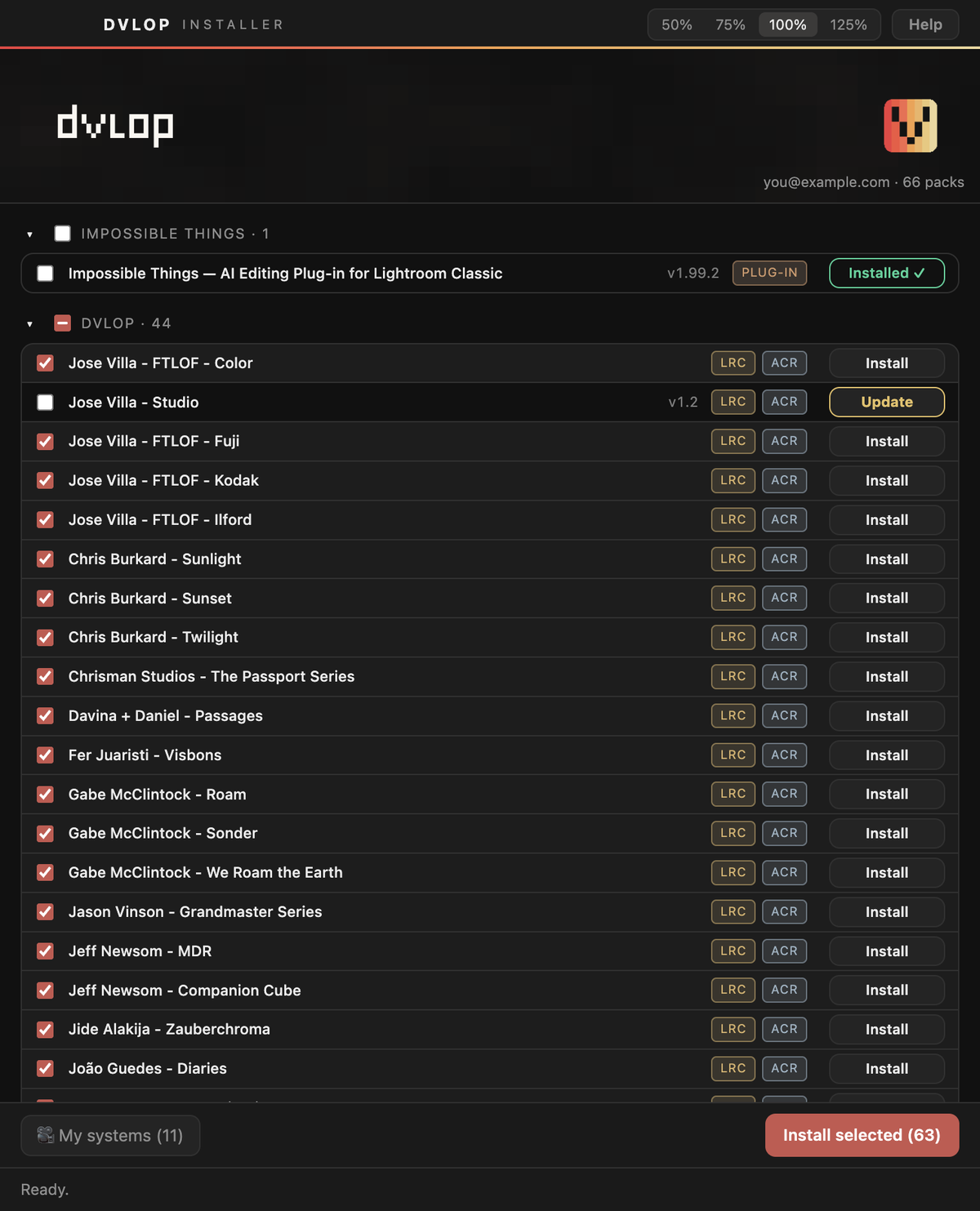
• STEP 1 – Open the DVLOP Installer and sign in. (If you don't have it yet, download DVLOP-THINGS.zip from your DVLOP account page – see How to Install to Adobe Lightroom Classic and ACR.) • STEP 2 – Look at the library. Any pack with a newer version than the one on this computer shows an Update button, and its row is already ticked.
• STEP 3 – Click Update on the row, or click Install selected to update everything that is ticked at once. Wait until the row reads Installed ✓. • STEP 4 – Restart Lightroom Classic and Photoshop. |
PROFILE UPDATES
|
Camera profiles are updated separately, through the free Profile Updates rows (DVLOP X, DVLOP III and DVLOP FILM II). When new camera profiles are published, those rows switch to Update on their own. Click Update and restart Lightroom. You do not need to reinstall your packs. See Profile Missing Error.
|

LIGHTROOM (NON-CLASSIC) DESKTOP AND MOBILE
|
Updates for Lightroom (Non-Classic) work by importing again: click Install on Lightroom (Non-Classic) Desktop and Mobile Install in the Advanced / Manual section to save a fresh .zip, then import it as described in How to Install to Adobe Lightroom (Non-Classic) Desktop and Mobile. |