
The DVLOP Installer

The DVLOP Installer puts your DVLOP presets, profiles, Capture One styles, LUTs and the Impossible Things plug-in on your computer. It replaces the previous DVLOP & THINGS installer (the step-by-step wizard with Next and Finish buttons).
DOWNLOAD AND OPEN
|
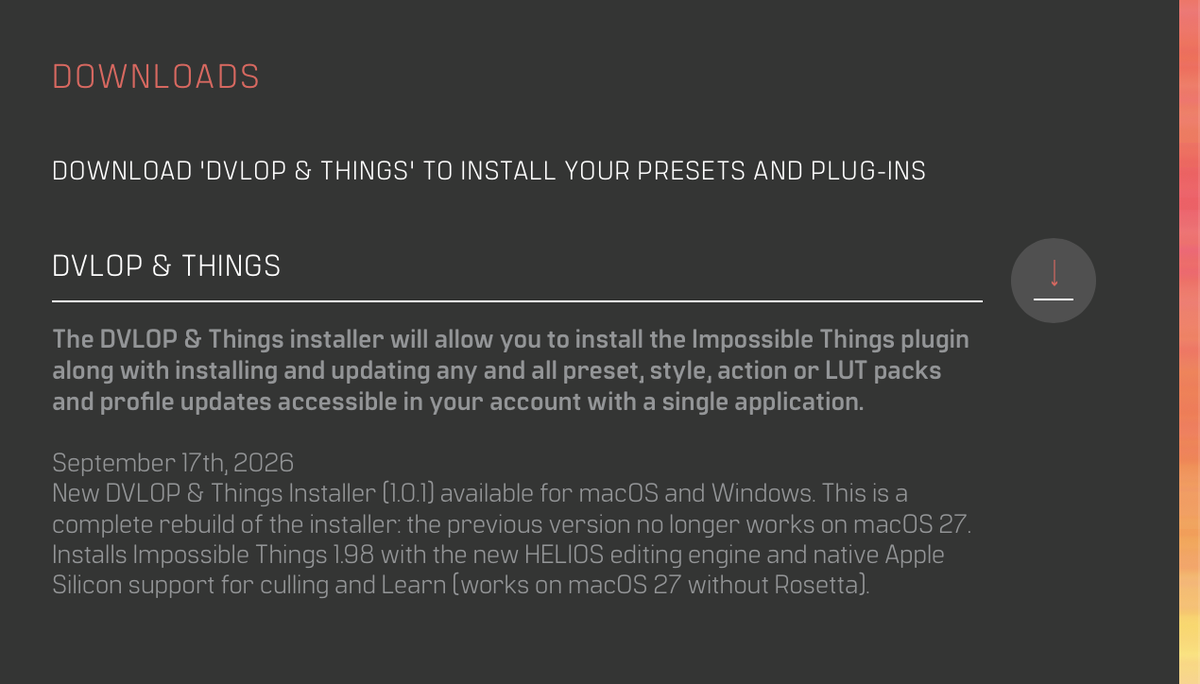
• STEP 1 – Sign in to your DVLOP account page and download DVLOP-THINGS.zip. This is the same account and the same download as before.
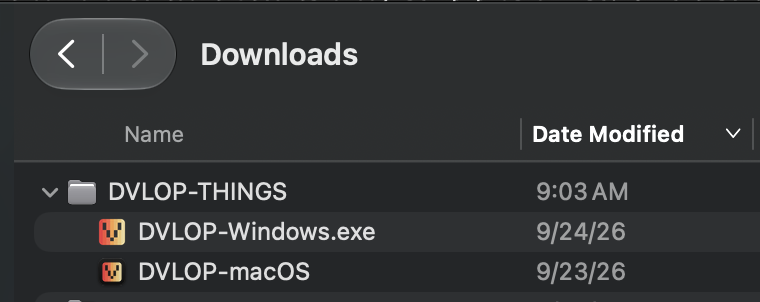
• STEP 2 – Unzip it. You get a folder named DVLOP-THINGS with two apps inside: DVLOP-macOS for Mac and DVLOP-Windows.exe for Windows. Both are always included – use the one for your computer and ignore the other.
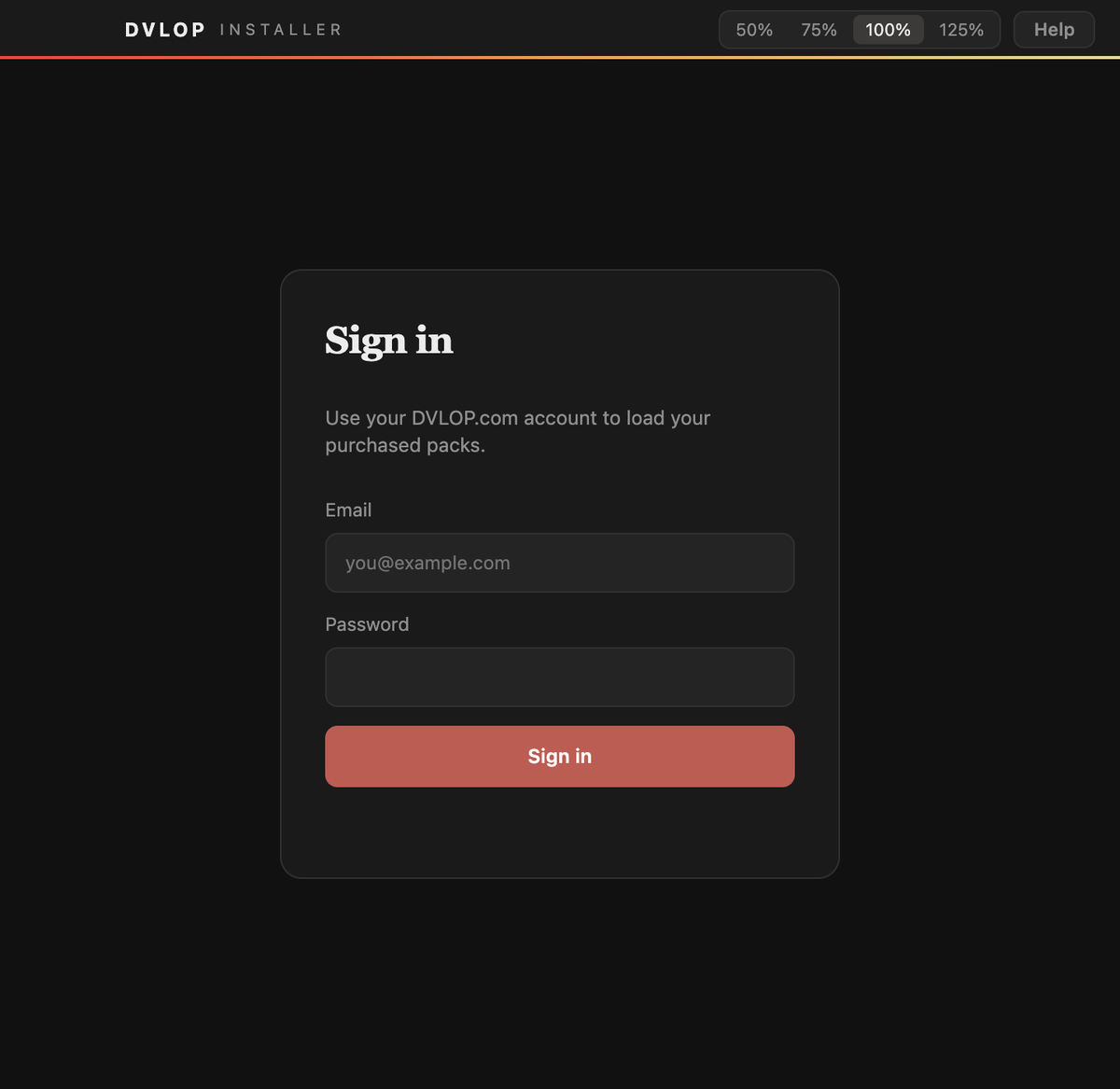
• STEP 3 – Double-click the app. It runs from wherever it is – your Downloads folder is fine. There is no setup wizard and nothing else to install. The first time it opens you accept the license agreement, then sign in with your DVLOP email and password (the same login as the website).
Mac: the app is universal (Intel and Apple silicon, no Rosetta), signed and notarized with Apple, so it opens without a security warning. Windows: the app is code-signed, so there is no SmartScreen warning. If you do see "damaged" or a warning, the download was incomplete – see Installer errors and what to do. |
THE LIBRARY
|
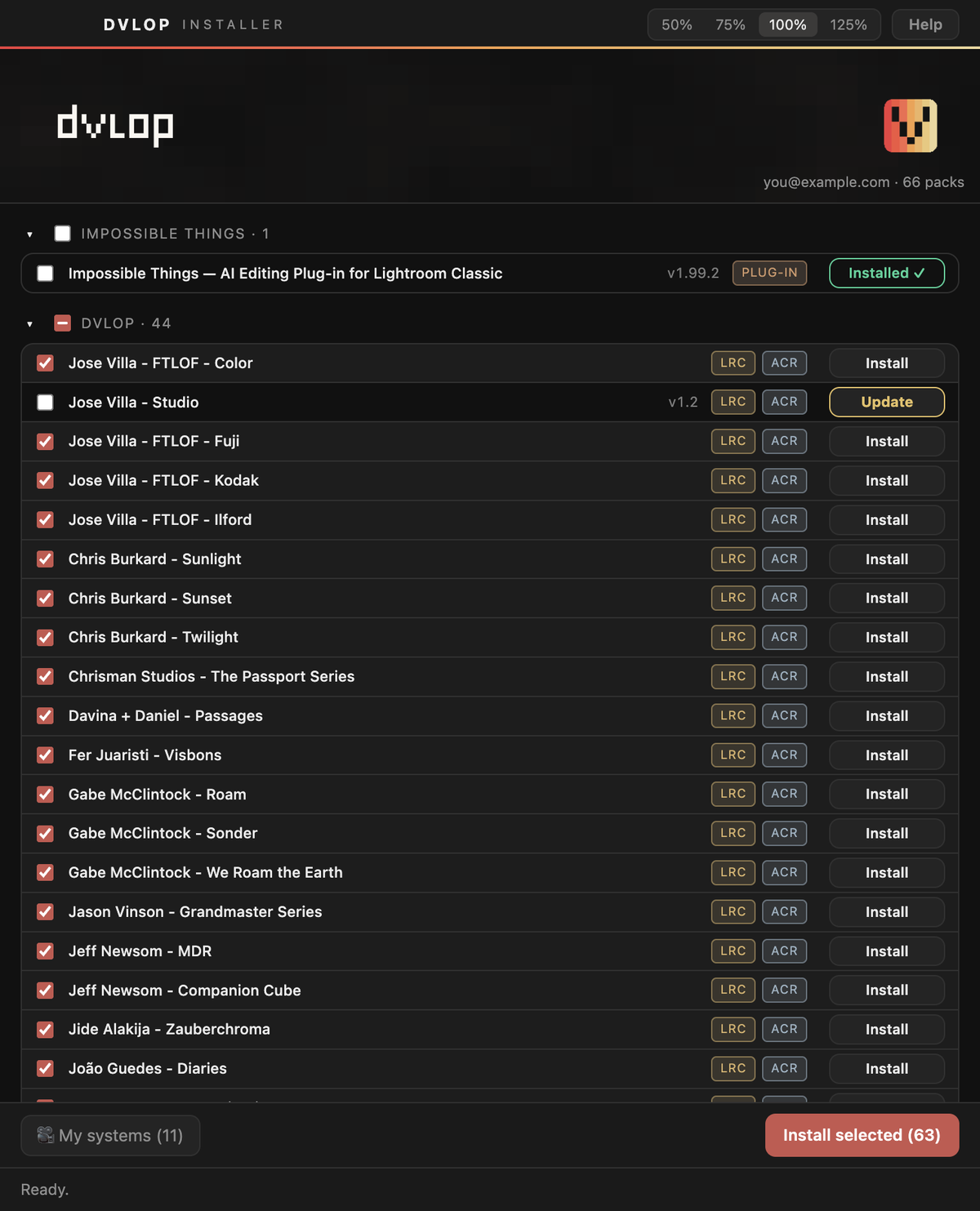
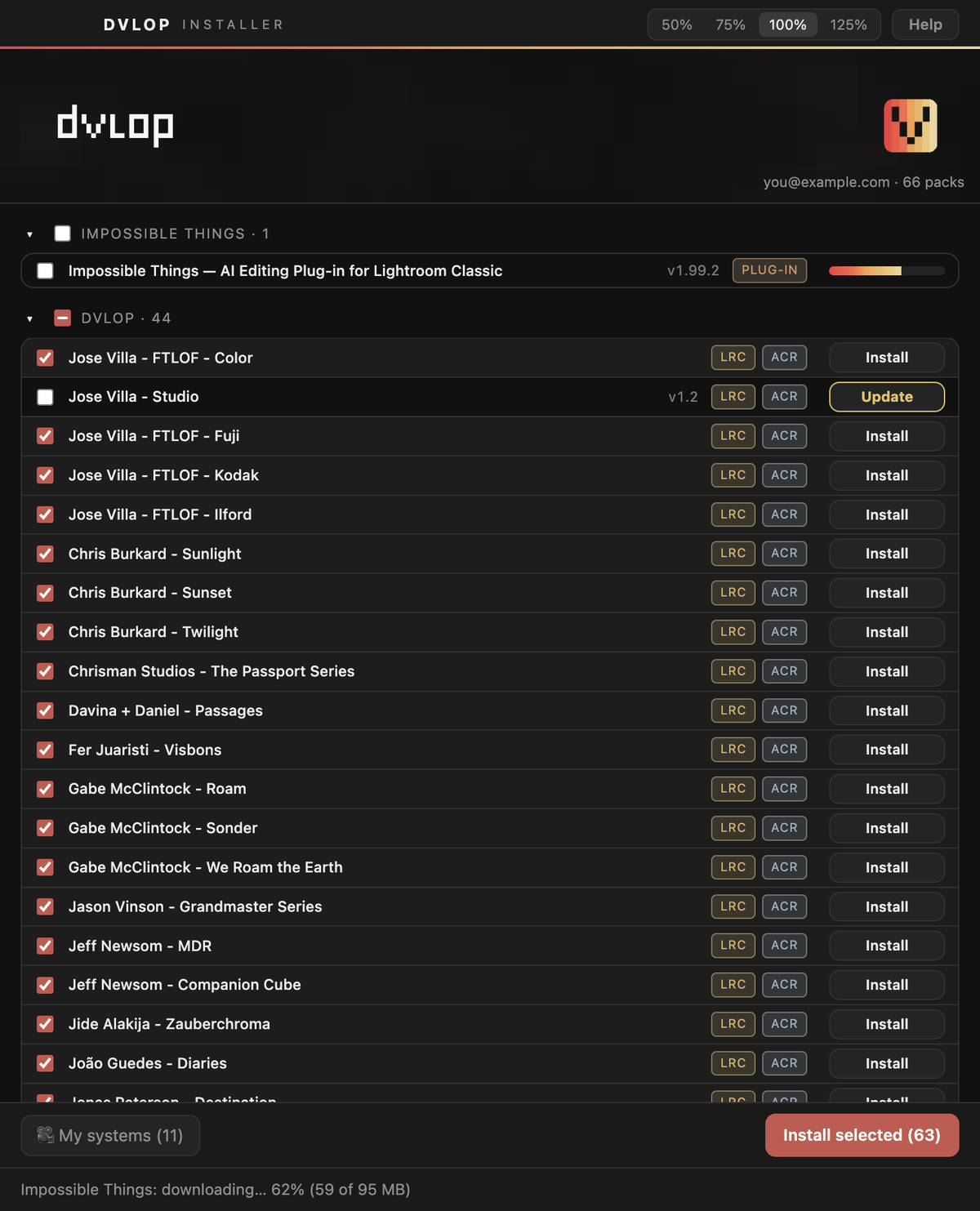
After you sign in, the installer shows your library: every pack on your account in one window. Free items are listed too – Impossible Things at the top, the Profile Updates, and the Advanced / Manual options at the bottom.
Every row has a checkbox, the pack name, a version chip (for example v1.2) and one or more badges saying where it installs: LRC/ACR – Lightroom Classic and Camera Raw · PROFILES – camera profiles · C1 – Capture One · LUT – video editors · ADVANCED – the manual options. The button on the right is the state of that pack on this computer:
Click Install (or Update) on a single row, or tick several rows and click Install selected. When the library opens, packs that are not installed or have an update are already ticked, so Install selected only does what is needed. Large items show a progress bar while they download.
Leave the window open until the rows read Installed ✓. On Windows, closing the window cancels the install; on Mac it finishes in the background. Per computer. The installer keeps its own record of what it has installed on each computer, so a pack can read Installed ✓ on your desktop and Install on your laptop. Packs you installed with the previous DVLOP & THINGS installer show Install the first time – installing again is safe; it replaces the files with the current version. Updates are built in. Every time you open it, the installer checks for newer versions of your packs and new camera profiles and shows Update where there is one. You never need to download a new installer to get an update, and new purchases appear in the library on their own. |
PASSWORD PROMPTS
|
The installer installs everything as you, into your own folders. It never runs as administrator and normally never asks for your computer password. There is a single exception, asked once and safe to accept: Repairing files left by the previous installer (Mac only). The old installer ran as administrator and could leave preset, style or LUT files owned by the administrator instead of you. If the installer finds such files it asks for your Mac login password once, makes the files yours and changes nothing else. If you decline, nothing breaks – the installer leaves those files alone and asks again next time. Any other password prompt means you are running the previous installer. |
WHICH VERSION DO I HAVE?
|
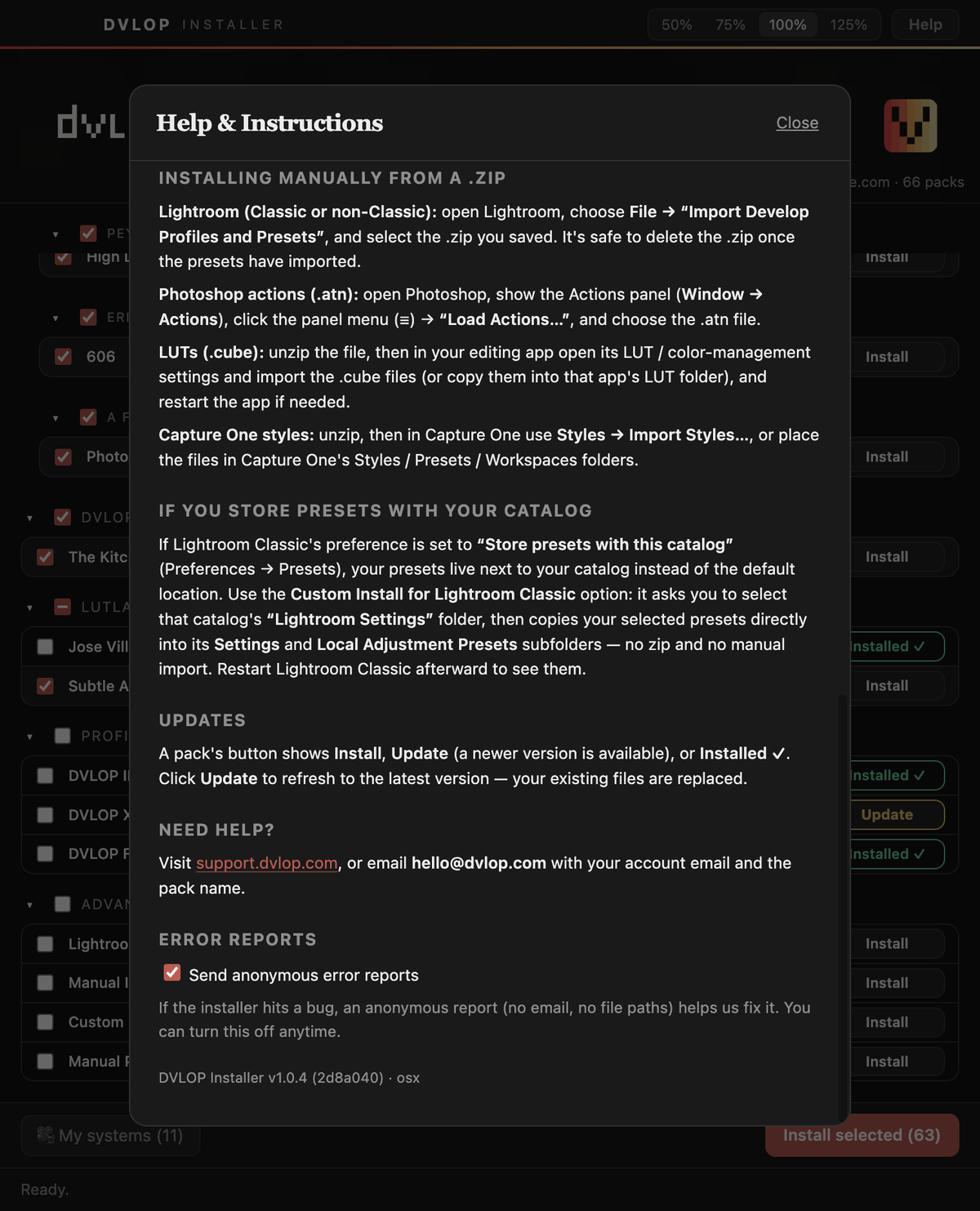
Click Help at the top right of the installer. The version line at the bottom of the panel reads, for example, "DVLOP Installer v1.0.5 (385dfc4) · osx". The current version is 1.0.5. Please include this line when you contact us about an installer problem.
Anonymous error reports. If the installer hits a bug it sends us an anonymous report – a description of the error and basic information about the installer, with no email, no file paths and no IP address. You can turn this off with the "Send anonymous error reports" checkbox in the same panel; the installer works exactly the same with it off. |
STILL USING THE PREVIOUS INSTALLER?
The DVLOP & THINGS installer is retired. On macOS 27 it reports success but installs nothing – the files end up in the administrator account instead of yours. Download DVLOP-THINGS.zip from your account page and use the DVLOP Installer instead; every pack will show Install the first time, which is expected.